1. Before you start
KalmBaby works best when the phone is placed correctly and the session is allowed to continue uninterrupted.
- Place the phone flat on a stable surface. This helps the vibration travel evenly through the surface.
- Keep the phone safe and out of the baby’s reach. Do not place a loose phone where the baby can grab it, pull it, cover it or press buttons.
- Do not block the phone. Do not cover the speaker, microphone, vibration area or screen. A blocked phone can reduce sound, weaken vibration, or prevent Monitor AI from listening correctly.
- Keep KalmBaby open in the foreground. Do not lock the phone and do not switch to another app during a session. The app needs to remain active to run sound, vibration and Monitor AI reliably.
- Use the in-app screen options instead of locking the phone. If you want a dark screen, choose the Screen off option inside KalmBaby.
- Consider turning off the network or enabling airplane mode after setup. This can reduce calls, notifications and other interruptions while the baby is settling. If you need sign-in, subscription verification or online content, do that before disconnecting.
Safety reminder: KalmBaby is a calming aid. It is not a medical device, not a safety alarm, and not a replacement for adult supervision.
2. Home screen controls
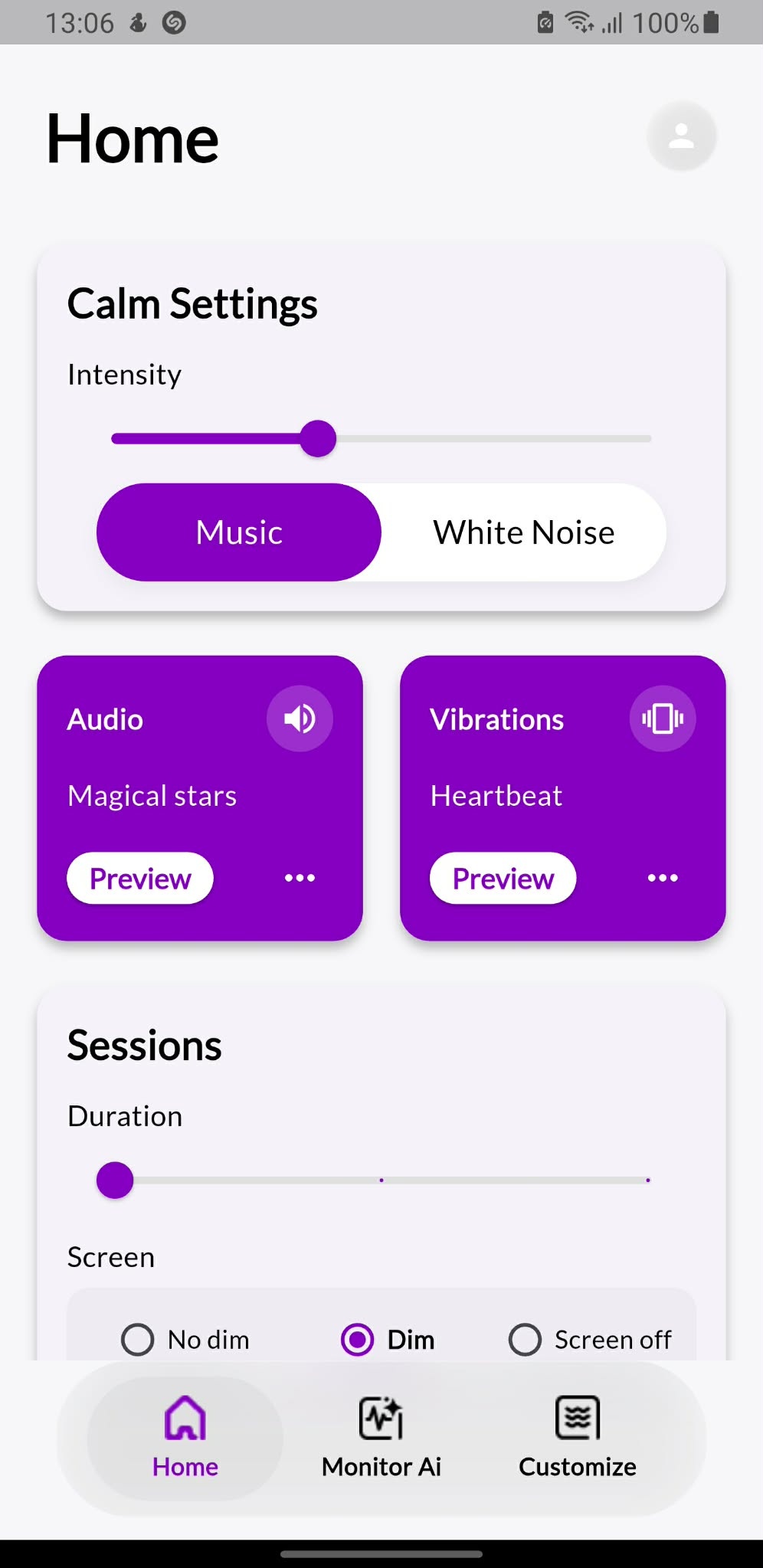
The Home screen is where you prepare a soothing session. The main controls are grouped into Calm Settings, Audio, Vibrations and Session.
Intensity
The Intensity slider controls how strong the phone vibration should feel. Move it left for a softer vibration and right for a stronger one. Start gently and increase only if needed.
Music / White Noise switch
The Music and White Noise switch changes the audio library shown in the Audio card. Choose Music for lullabies and melodies. Choose White Noise for ambient sounds.
Audio card
- The card shows the currently selected audio track, or Play all when all lullabies are selected.
- Use Preview to preview the current sound before starting a full session.
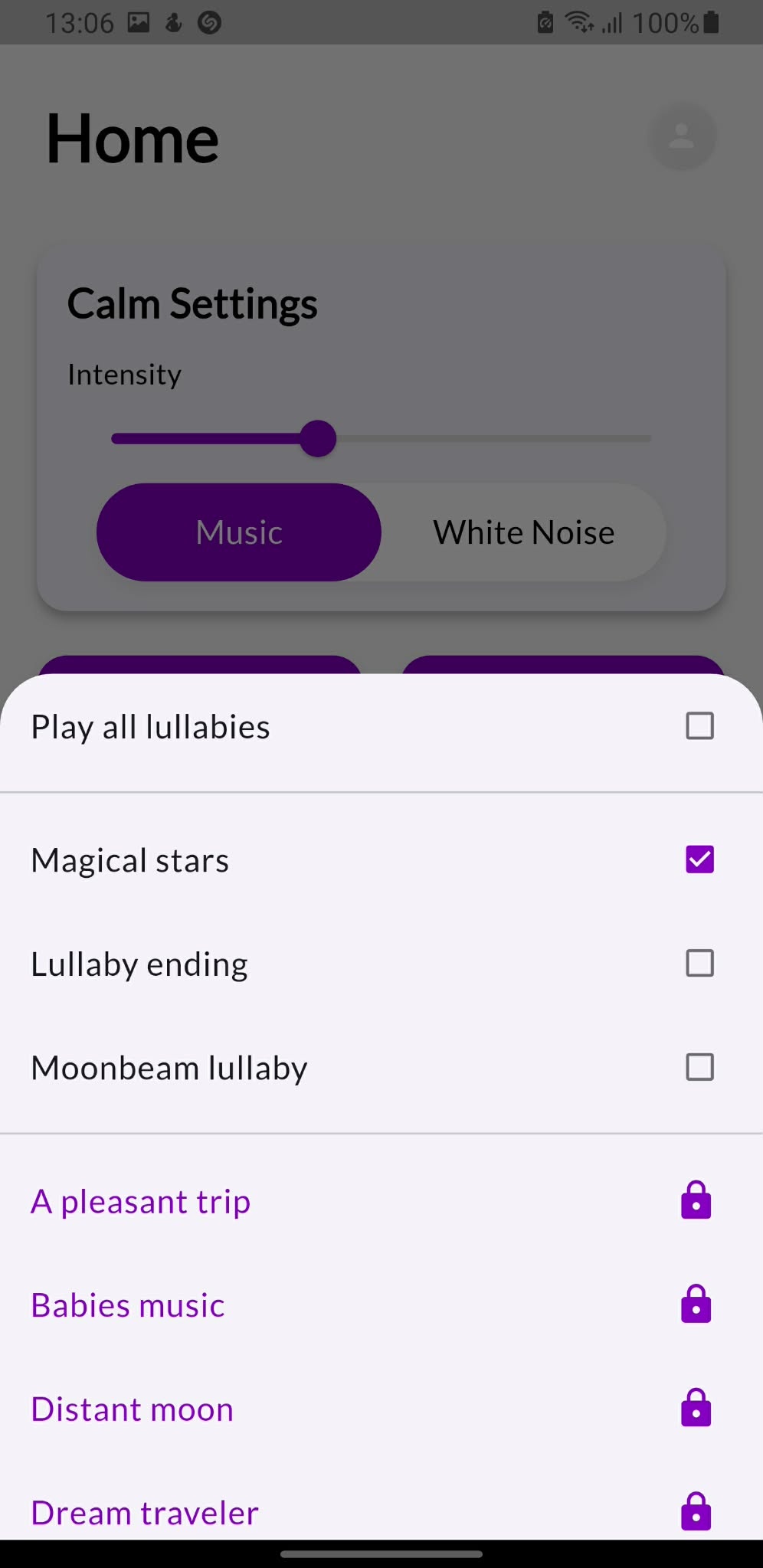
- Use the three-dot menu to open the audio selection list.
- Use Play all lullabies from the audio selection list when you want the app to continue through the available lullaby list instead of using only one selected sound.
- To run without sound, use the round sound icon in the top-right of the Audio card. The session can then run with vibration only.
Vibrations card
- The title in the card shows the selected vibration pattern.
- Use Preview to preview the vibration pattern.
- Use the three-dot menu to select a different preset or custom pattern.
- To run without vibration, use the round vibration icon in the top-right of the Vibrations card. The session can then run with audio only.
3. Music and white noise
KalmBaby gives you two audio modes: calming music and white noise. You can switch between them at the top of the Home screen.
How to select a sound
- On Home, choose Music or White Noise.
- Tap the three-dot menu on the Audio card.
- Select the sound you want from the list, or choose Play all lullabies to loop through the available lullabies.
- Tap Preview if you want a short preview.
- Press Start when the rest of the session settings are ready.
Locked sounds
Items shown with a lock icon are subscription features. They remain visible so you can understand what is available in the full version, but they cannot be selected in the free version.
4. Vibrations
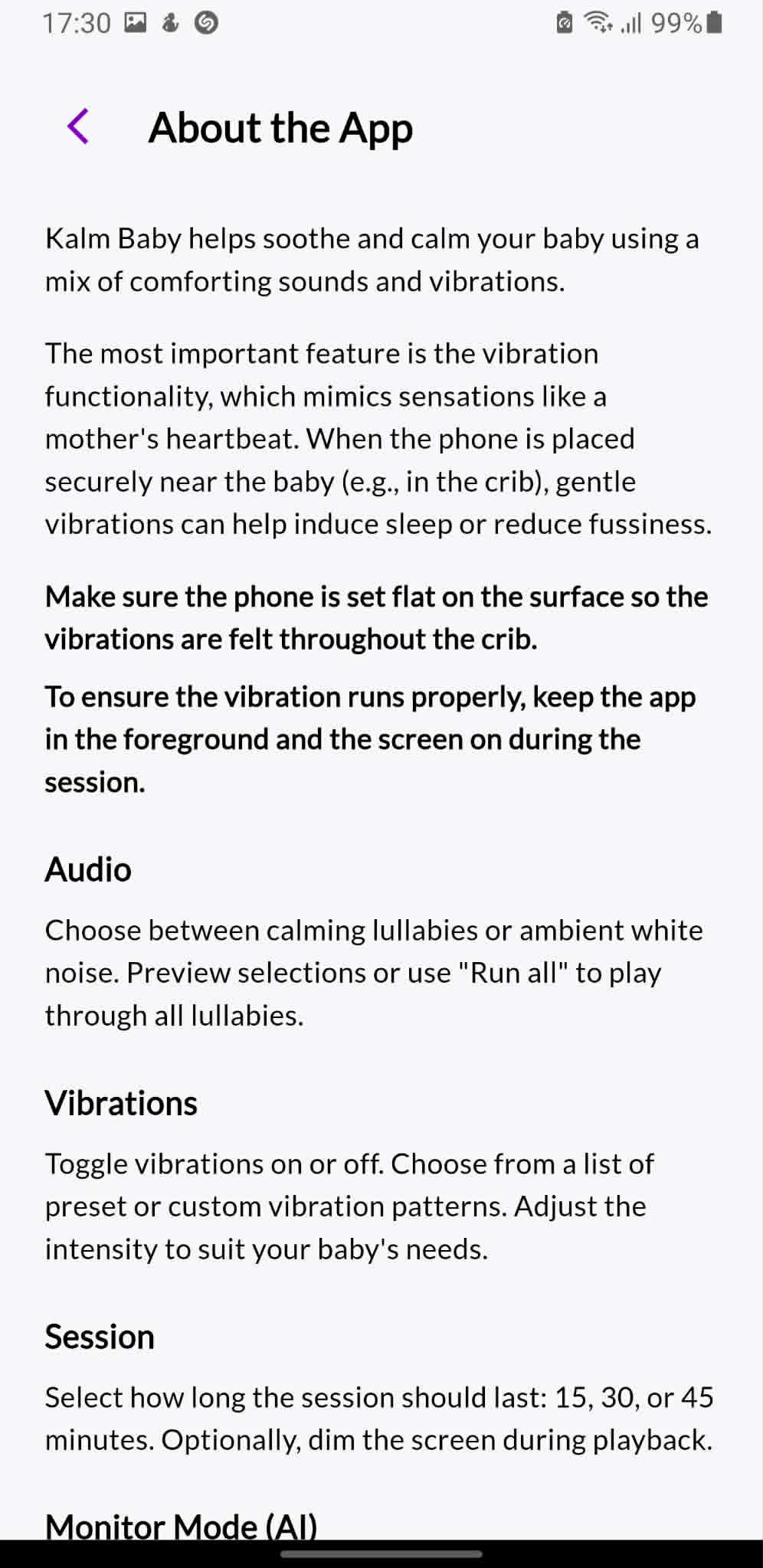
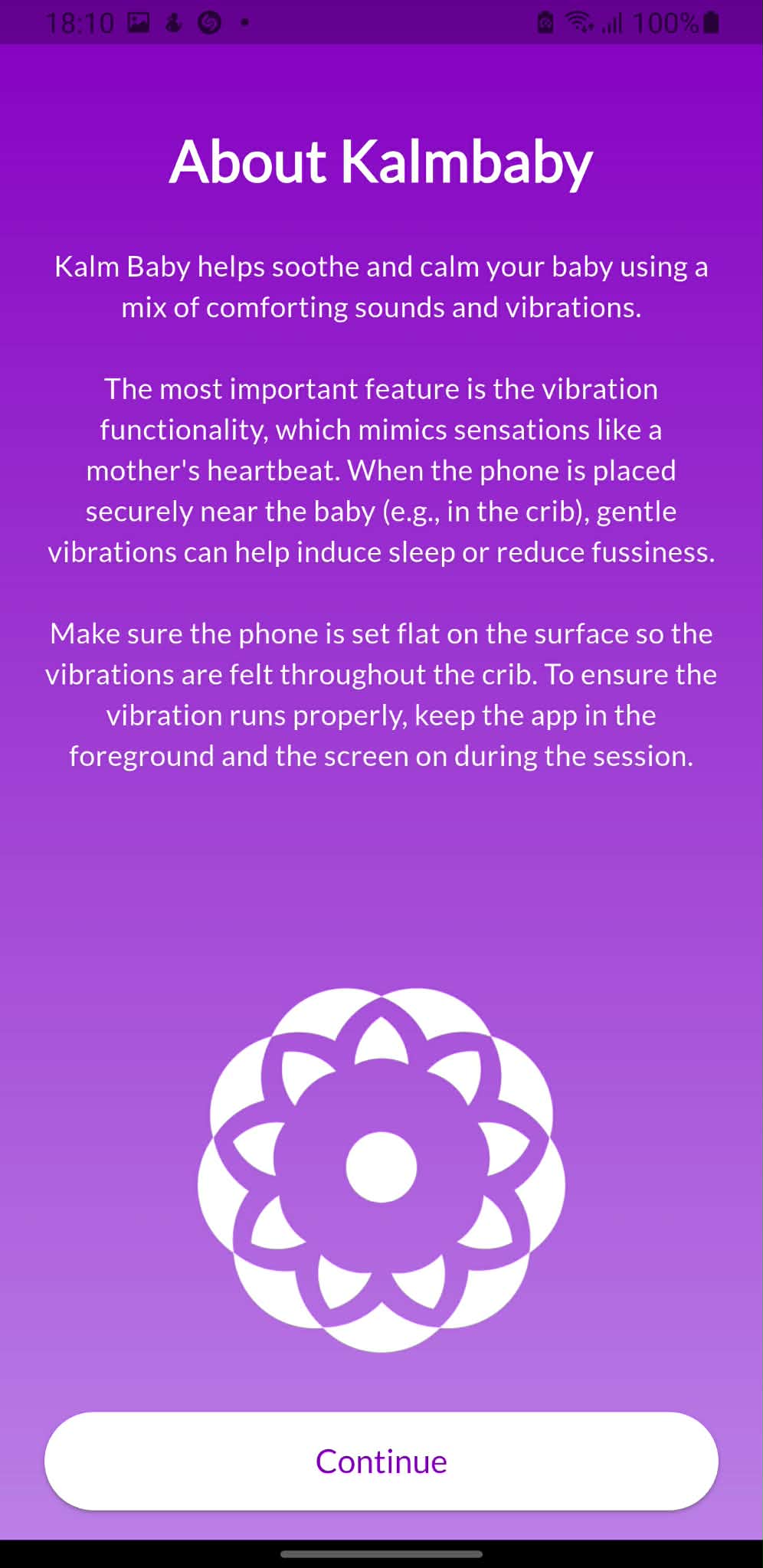
Vibration is one of the most important parts of KalmBaby. The idea is to create gentle, rhythmic sensations that may help the baby settle, especially when combined with calming audio.
How to choose a vibration pattern
- Open the Home screen.
- Use the Preview button on the Vibrations card to preview the current pattern.
- Tap the three-dot menu to choose another vibration pattern.
- Adjust the Intensity slider until the vibration feels appropriate.
- Start the session.
When to disable vibration
You can disable vibration when you want the app to run as an audio-only soothing session. This is useful if the surface does not transmit vibration well or if the baby responds better to sound only.
5. Session length and screen options
The Session card controls how long the soothing session runs and what happens to the screen during playback.
Duration
Use the Duration slider to select how long the session should run. The free version may show a smaller set of available session lengths, while subscription unlocks longer options.
No dim
The screen stays visible normally. This is useful when you want to watch the timer or adjust the session quickly.
Dim
The app reduces the screen brightness during the session. This keeps the app active while making the screen less distracting in a dark room.
Screen off
The app shows a black screen overlay while the session keeps running. This is different from locking the phone. Do not press the phone power button. Use the KalmBaby Screen off option instead.
How to turn the screen back on from Screen off mode
When the black in-app overlay is active in Player mode or Monitor mode, tap the screen to reveal the app controls again. Tap again when you want to return to the black overlay. The app continues running while this overlay is active.
6. Player mode
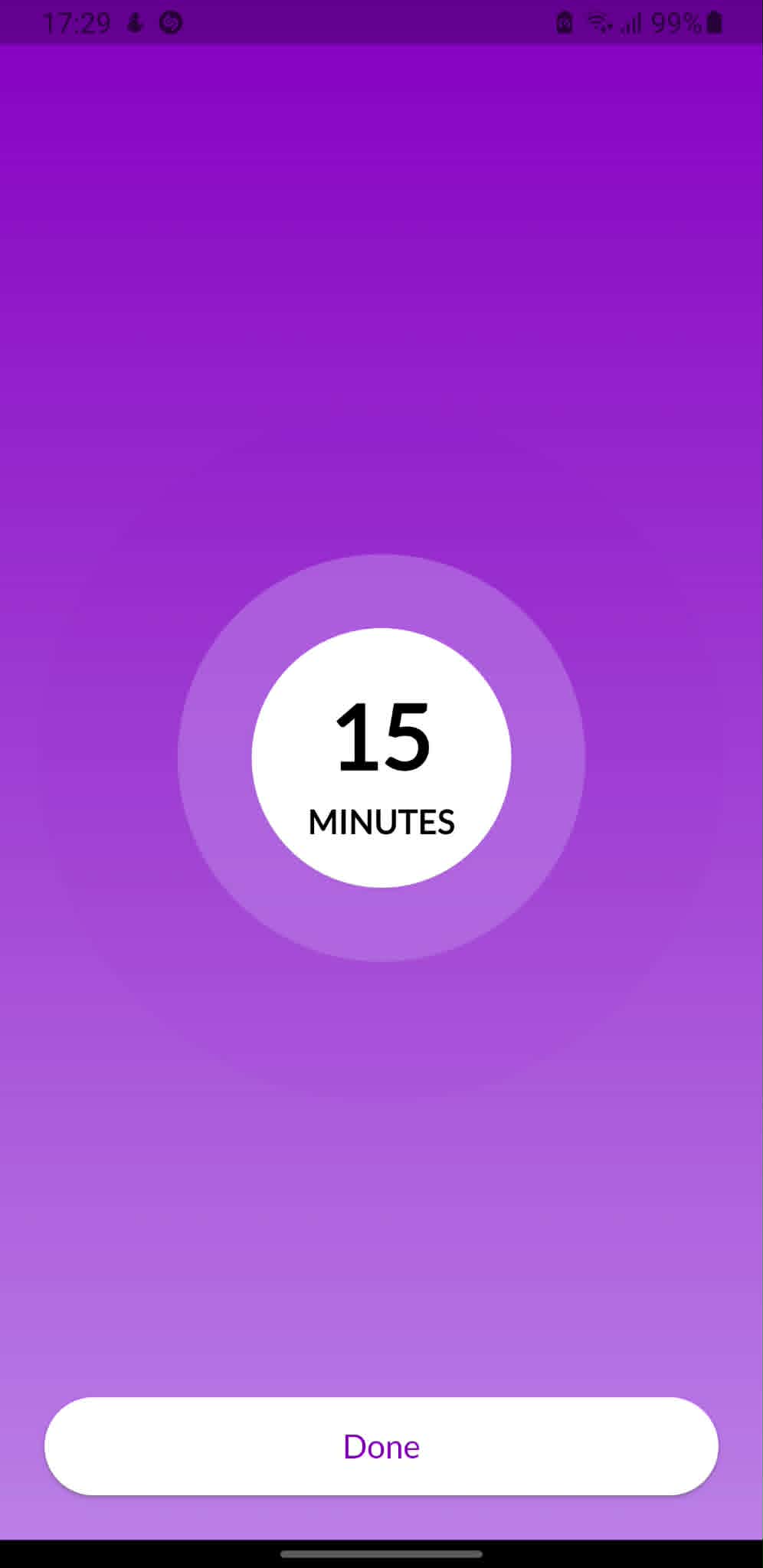
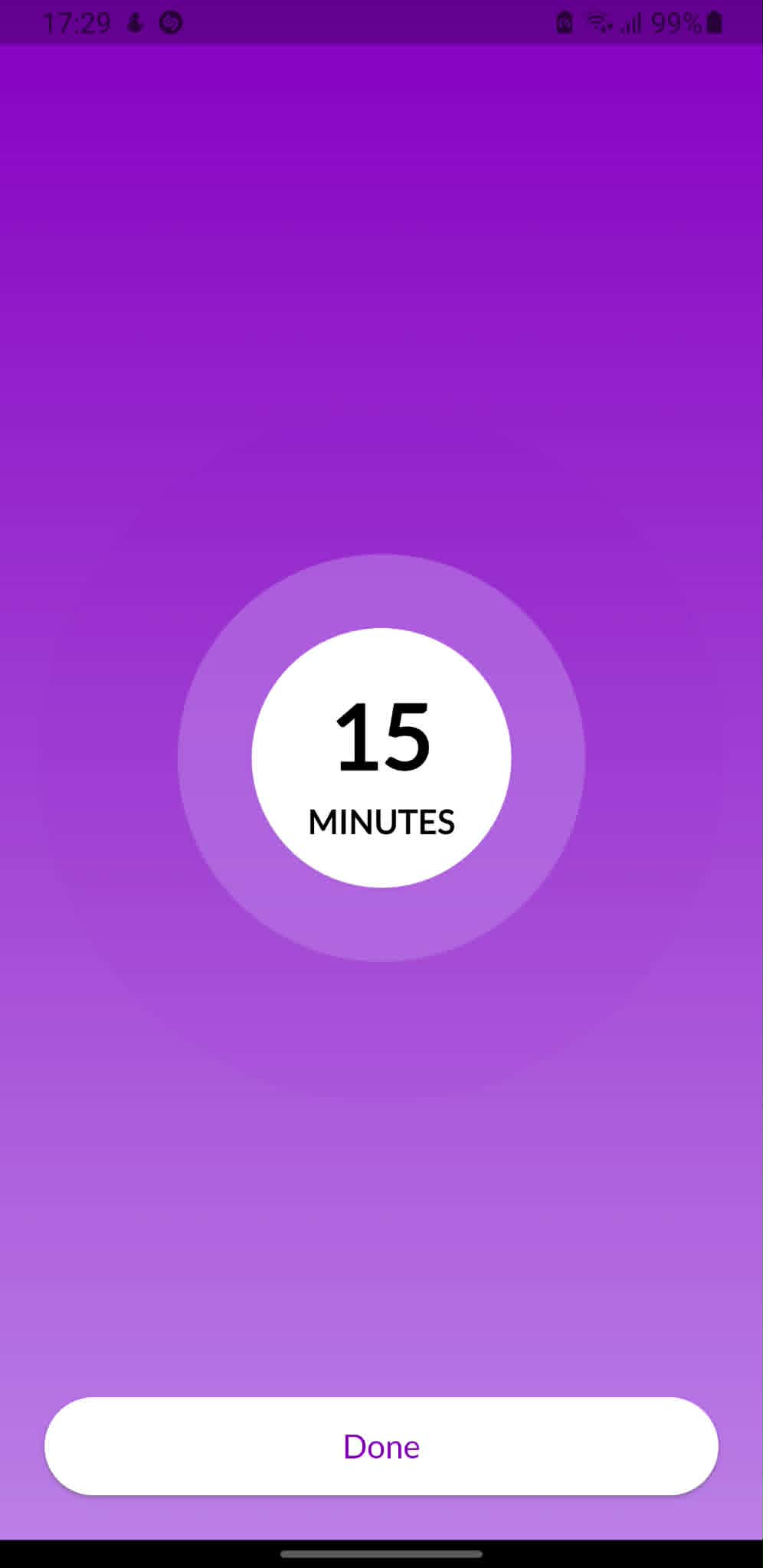
Player mode starts after you press Start from the Home screen or after Monitor AI triggers a soothing session automatically.
- The large center area shows the active session status or timer.
- The Done button stops the session and returns you to the previous flow.
- If Screen off mode is active, tap the black overlay to reveal the controls.
- Keep the app open until the session ends or until you press Done.
7. Monitor AI
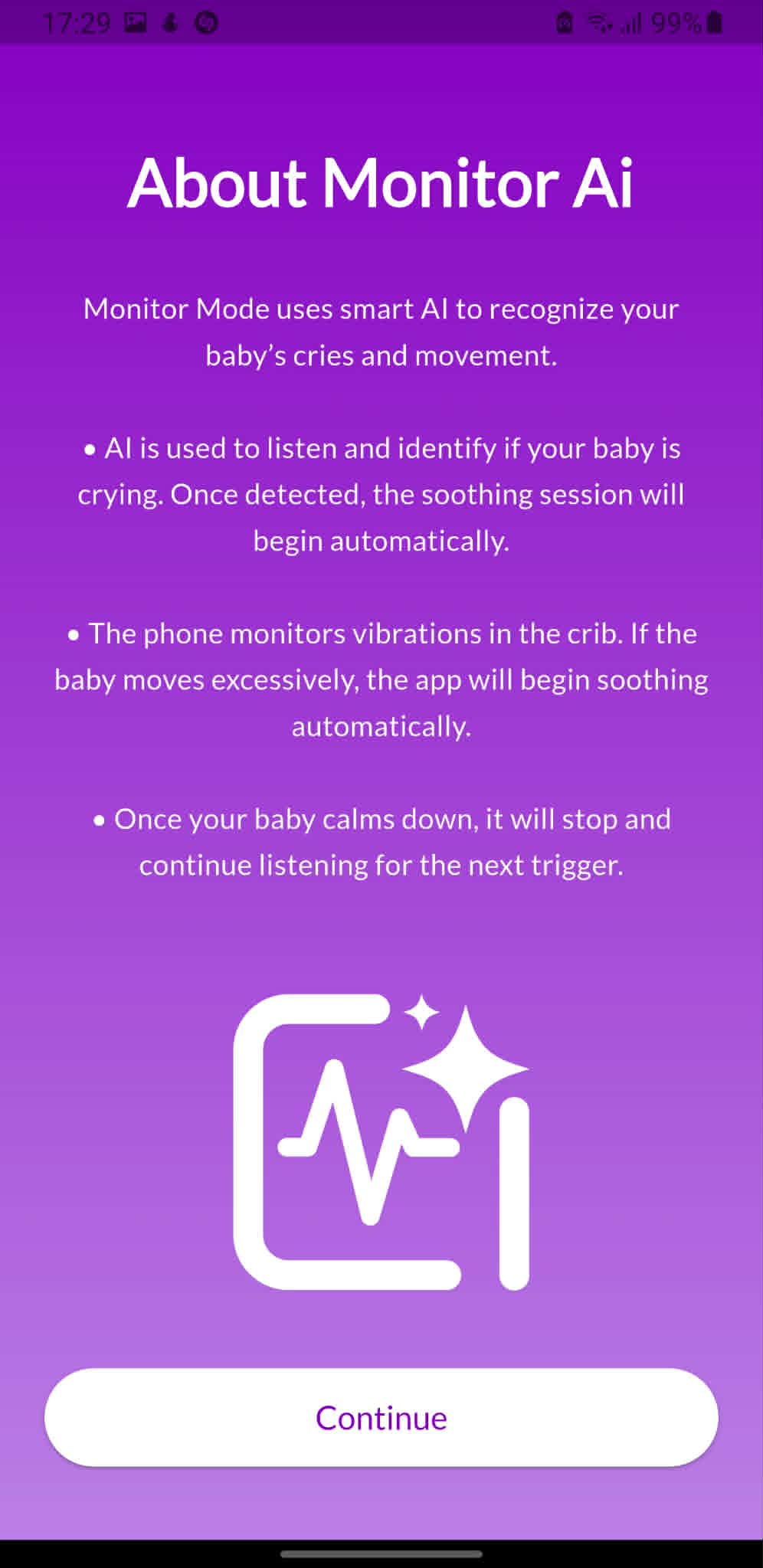
Monitor AI is designed to watch for crying and movement, then start soothing automatically when one of the enabled triggers is detected.
How it works
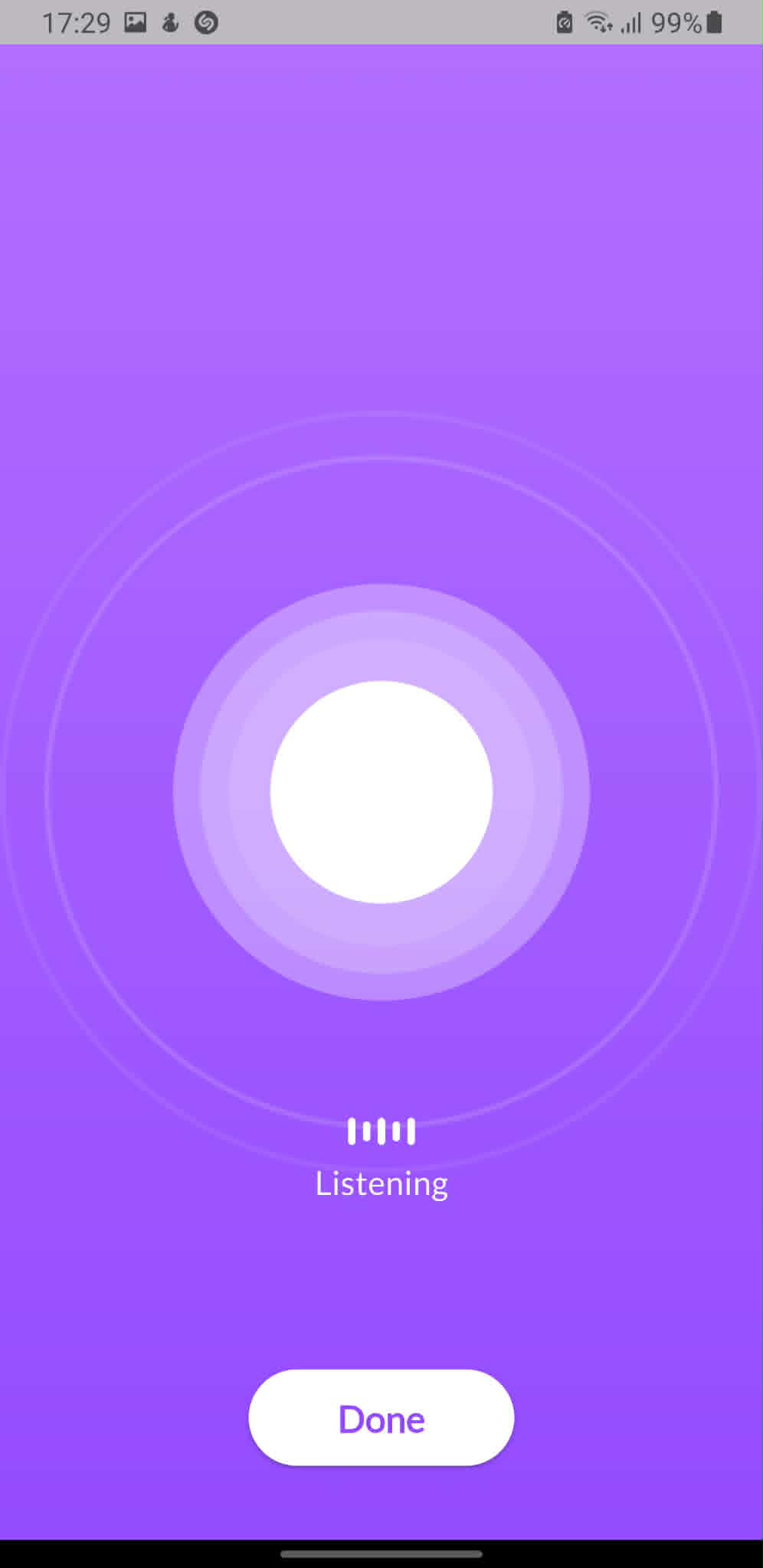
- Crying detection: the app listens for baby crying. When crying is detected, the selected soothing session can begin automatically.
- Movement detection: the app monitors movement/vibration. If movement exceeds the selected behavior threshold for long enough, soothing can begin automatically.
- After soothing: once the session ends and the baby calms down, Monitor AI can continue listening for the next trigger.
How to use Monitor AI
- Choose the sound, vibration, intensity, duration and screen option you want to use for the automatic session.
- Open the Monitor AI tab.
- Enable Crying detection, Movement detection, or both.
- Press Start.
- Leave the app open and keep the phone placed safely, flat and unblocked.
Important: Monitor AI depends on the phone microphone, sensors, placement and environment. Loud background noise, a blocked microphone, an unstable surface or the phone being locked can reduce accuracy.
8. Custom vibration patterns
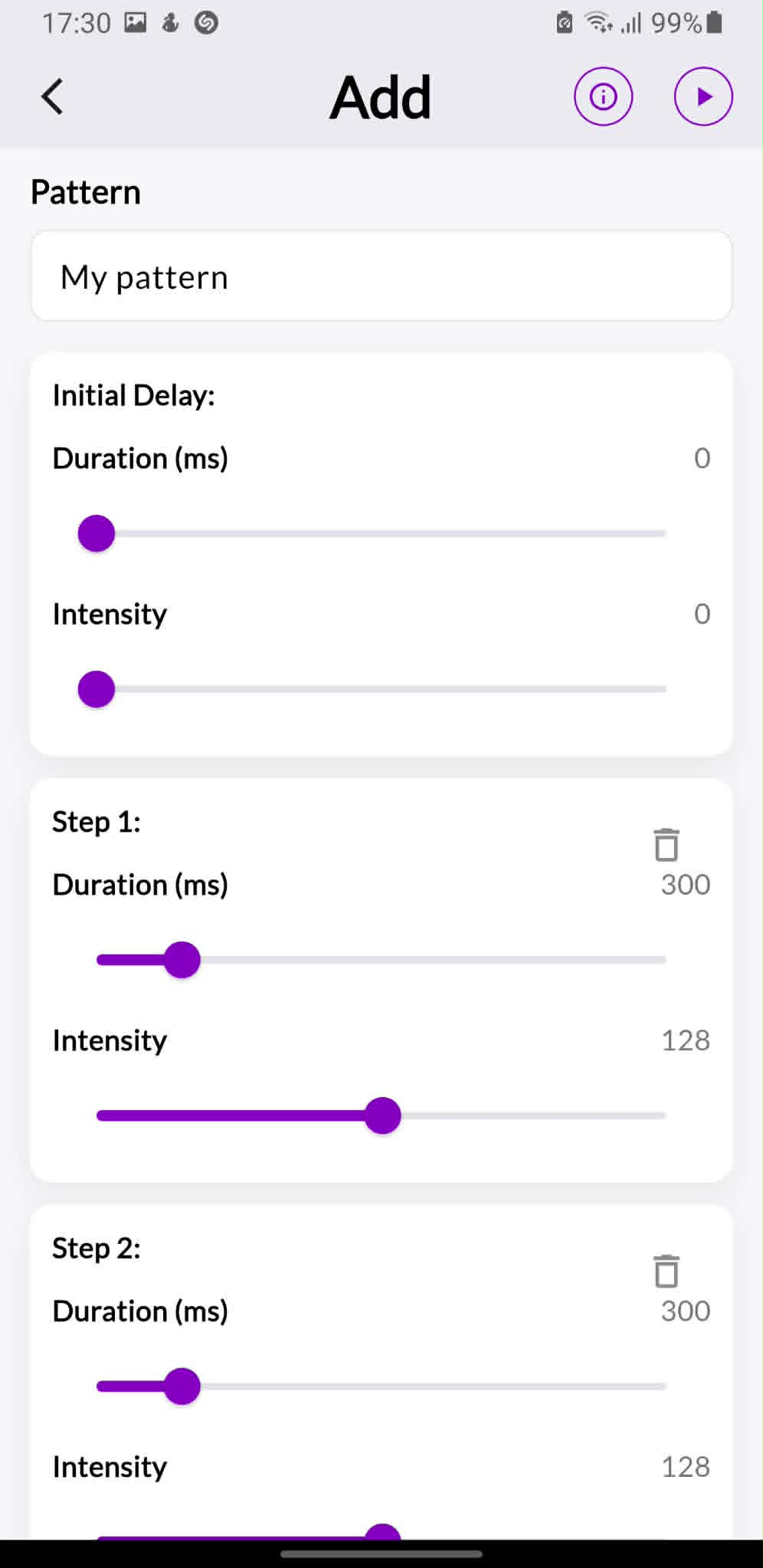
Custom vibrations let you create your own rhythm by combining steps. Each step has a duration and an intensity.
What the fields mean
- Pattern name: the name you will see later in the vibration list.
- Initial Delay - Duration (ms): a pause before the pattern starts. A value of 0 means the pattern starts immediately.
- Initial Delay - Intensity: the vibration strength during the initial delay. Usually this stays at 0 if you want a silent pause.
- Step Duration (ms): how long that step lasts. For example, 300 ms is a short pulse.
- Step Intensity: how strong the vibration is during that step. Lower values are softer, higher values are stronger.
- Delete icon: removes that step from the pattern.
- Play icon: previews the pattern before saving or using it.
- Info icon: opens extra help about building a pattern.
Step-by-step example
- Open the custom vibration screen and enter a pattern name.
- Keep Initial Delay at 0 if you want the rhythm to start immediately.
- Set Step 1 Duration to a short value such as 300 ms.
- Set Step 1 Intensity to a gentle value first.
- Add another step to create the next pulse or pause.
- Repeat until the rhythm feels natural.
- Use the Play button to preview the full pattern.
- Save the pattern and select it from the Vibrations card.
9. Free version and subscription
KalmBaby can be used for free with a limited set of features. Subscription unlocks the full experience.
Free version
- Access to selected lullabies and white noise sounds.
- Access to selected vibration patterns.
- Limited session lengths.
- Limited Monitor Mode / Monitor AI usage.
- Some items may show a lock icon.
Subscription
- Unlocks the full audio library.
- Unlocks the full vibration library.
- Enables custom vibration patterns.
- Unlocks longer session options.
- Removes free usage limits for premium features.
- Provides the full KalmBaby experience without free-version restrictions.
10. Troubleshooting checklist
If sound, vibration, Monitor AI or screen-off mode does not behave as expected, check these items first.
No vibration
Check that vibration is enabled in KalmBaby, the intensity is not too low, the phone supports vibration, battery saver is not limiting it, and the phone is flat on a surface that can transmit vibration.
No sound
Check that sound is enabled in KalmBaby, media volume is up, the selected track is available, and the speaker is not covered.
Monitor AI not triggering
Keep the app open, grant microphone permission when requested, do not block the microphone, and keep the phone stable enough to detect movement correctly.
Most important rule
Do not lock the phone and do not move KalmBaby to the background while a session or Monitor AI is running. Use the app’s own Dim or Screen off mode instead.